How to verify a SHA-256 checksum on Windows, macOS and Linux
Check that a downloaded file matches its published SHA-256 checksum on Windows, macOS or Linux, and understand what a match proves.
By WP Free Plugins,
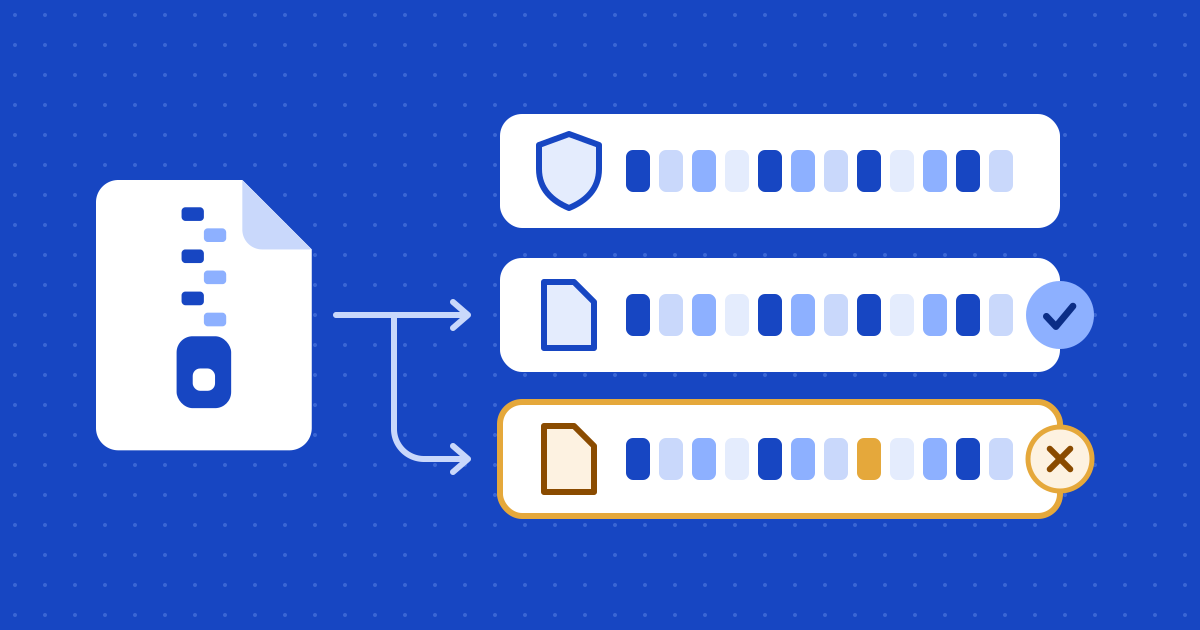
A checksum is a short fingerprint of a file. If one byte changes, the fingerprint changes completely. Comparing it with the published value shows whether you have the same file.
Windows
Open PowerShell and run:
Get-FileHash "$HOME\Downloads\plugin.zip" -Algorithm SHA256macOS
Open Terminal and run:
shasum -a 256 ~/Downloads/plugin.zipLinux
sha256sum ~/Downloads/plugin.zipCompare the values
The command prints 64 characters. Compare all of them with the published checksum. Upper and lower case do not matter. On macOS or Linux you can let the computer do it, with the published value in place of CHECKSUM:
echo "CHECKSUM $HOME/Downloads/plugin.zip" | shasum -a 256 -cA match prints OK.
If they do not match
- Download the file again. An interrupted download is the most common cause.
- Check that the version on the page is the one you downloaded.
- If it still differs, do not install the file. Tell us and include both values.
What a match proves
A match shows that your file is identical to the one the checksum was made from. It does not show that the file is harmless, that the licence allows sharing, or that the developer made it. A checksum protects you from corruption and from a swapped file, and nothing more.
It is also only as trustworthy as the page that publishes it. For that reason the checksum on our pages is stored separately from the file host: someone who replaced a file on the host could not change the value shown here.